86 GB of Free Cloud Storage

My free Dropbox account is now up to 10.6 GB. I’ve written in the past how I got 7GB of cloud storage space for free, and a service called Just Cloud, offering unlimited storage for $150 for two years.

I wanted to follow up with something that I was having a tough time figuring out for myself.
I was running out of space on Dropbox, when I realized I was using Dropbox differently than it should be used, and I could use another service instead.
This is what I’m trying to explain…
I use dropbox to sync files across two home computers, my work computer and a laptop. Dropbox works perfectly for this, but the real feature of dropbox is having access to these files on any computer from anywhere.

I could use Microsoft Live Mesh to sync files across my computers, thus freeing up my Dropbox account for files that I want to access from anywhere. I’m not sure if this solution will be around for much longer though, as Windows is combining Live Mesh with their Sky Drive service when using Essentials. Apparently when using the software “Windows Live Essentials 2011″ it still works, but I don’t know for how long. If you install “Windows Essentials 2012″, you loose the functionality of Live Mesh. To install Live Mesh alongside of Windows Essentials 2012 you can try to use this Live Mesh installer.

I can’t seem to find other applications that allow folder sync directly that don’t involve a cloud sync with a limited storage capacity for free. Perhaps PureSync, but I’m not willing to try this one out. The only other one I could find was FolderShare, but that is what Microsoft bought to create Mesh.

Update: Dec. 2012Windows has announced that Windows Mesh (file syncing) will stop working on Feb. 13, 2013 (Happy Valentines Day), so now I’m left looking for another alternative. While I found one, it’s not free. Cubby, by Logmein.com is offering a feature called “DirectSync” which syncs “unlimited folders across computers without using your cloud storage.” This is perfect. This is what Windows Live Mesh did. BUT the only way to use DirectSync is to purchase their paid solution. They offer 5GB free online storage for free, but the cheapest paid option is for 100GB for $6.99/mo (paid annually). Because they are still in beta, you can get it for 50% off at $3.99/mo (paid annually) at Cubby.com.

Here is a list of sync and cloud storage services that I found. Currently I am using Dropbox, Google Drive, Sky Drive with Live Mesh and Box for file syncing and cloud storage.

Dropbox – 2 GB Free

Google Drive – 5 GB Free – upgrade 25 GB for less than $2.50 a month

Microsoft Sky Drive – 7 GB Free

Box – 5 GB Free

att locker – 5 GB Free

Amazon Cloud Drive – 5 GB Free

https://pogoplug.com/cloud“>pogoplug – 5 GB Free now 7GB Free with my affiliate link OR unlimited cloud storage for $4.95 a month

LogMeIn’s Cubby – 5 GB Free

Apple iCloud – 5 GB Free

Ubuntu One – 5 GB Free

Sugar Sync – 5 GB Free

IDriveSync – 10GB Free

CX – 10GB Free

Open Drive – 5 GB Free

Team Drive – 2 GB Free

Syncplicity – 2 GB Free

Spider Oak – 2 GB Free

Zumo Drive – 1 GB Free
Keeping Sales Info Handy

I’ve heard about sales CRM software before, and actually had to look up what CRM stood for to write this (Customer relationship management). I knew the big companies used Sales Force, but found it geared for the big guys, and even the lower price points I thought I may be missing some feature because I wasn’t paying as much.

Ultimately I learned about another contender in this space called Pipedrive (referral link). I liked the interface and how easy it was to customize and use. We’ve been using it for about a month and it’s working out really well. There is apps for iphone/ipad, although they do not have the full functionality of the online interface.

Knowing what to A B test

I came across information about A B testing. A B testing involves two scenario web pages (usually a design change), that are equally presented in front of web visitors. You can then use analytics to track the behaviors of the two groups and see which design results in higher conversions or achievement of your goal. (whatever your goal with that page is).

Example:
You have a button that says “Register” for your web service. But you want to test “Sign Up” instead.
You can use a service to show half your users one page with the “register” button and the other half of your users one page with the “sign up” button. Then you see which one is better.
Once you determine the wording of the button, next you can AB test the color of the button, or the size of the button. You can keep doing this with all the things on your page until you have the ultimate conversion page, that utilized your real users, with measurable results. See Smashing Magazine’s Web Form Design Patterns for their stats on sign up forms.

But sometimes we don’t know what to test for. Which Test Won, is pretty cool paid service that lets you see what others are testing, and see which AB test performed the best on that company’s site, and may give you some inspiration for testing on your own site.

Unlimited Cloud Storage

Inexpensive cloud storage has been something I’ve been looking for for some time. I really appreciate my Dropbox account. But have spent some time investigating backup solutions that store online like Carbonite, as well as the new Dropbox competitors such as Sky Drive by Microsoft, and G drive by google.

So far I’ve stuck with Dropbox, mostly because they have ways way you can increase your free storage space allocation. I’m currently at a little over 10GB of free storage. The other big reason, is it works pretty easily, however Sky Drive and Google Drive have pretty much copied their method.

But when it comes to a large amount of cloud storage I’m at a loss. Even looking at Amazon S3 for cloud storage it was too complicated a setup and seemed expensive for a home user.

Recently I discovered JustCloud.com (which uses Amazon S3). I’m predicting this service is going to be a big hit. They offer an option for unlimited storage, across multiple computers for just over $150 for two years. That’s remarkably inexpensive when you throw in words like “unlimited”.

But this isn’t something you try out with a free account. You won’t get 5GB free, like the other services I mentioned above, but instead only 15mb of free storage space, and with their lowest tiered paid account, you get 1 GB free. So if you are going to use this service, go for the whole kit and kaboodle.

How I got 7GB of cloud storage space free on Dropbox


Do you know about Dropbox? Do you know how useful it can be?
Dropbox is cloud storage that also syncs to any computer that has the dropbox client installed on it. There is also android and iphone apps to access your files stored in the dropbox cloud. The free account gives you 2GB of storage.

I have installed dropbox on my home pc, my laptop, my work pc and my iphone. By installing the client software on my computer it makes a “My Dropbox” folder in my Documents folder. Any time I place another file/folder inside this “My Dropbox” folder, the client automatically uploads (in the background) these files to my cloud storage. Once the file is in the cloud, once any of my other computers are turned on, the dropbox client automatically syncs the files to that computer.

This has virtually replaced the need for my thumbdrive, and is much simpler than e-mailing files to get them onto other computers.

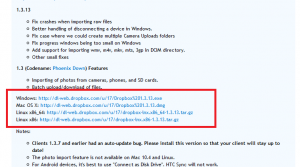
Recently Dropbox opened a new beta version of their client software (version 1.3.13). This beta version is testing the automatic upload of pictures and videos from a memory card.

According to the official forum post:

During this beta period, we are also offering additional free space to test automatic uploading of photos and videos. For every 500MB of photos and videos automatically uploaded, you’ll receive another 500MB space bonus, up to 5GB total.

To get the most space first signup with dropbox using my referral link. By doing this we’ll both get an extra 250MB right of the bat. So you will start with 2.5GB of space.

Then install the new beta client version of the software found on their forum.

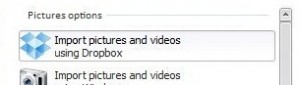
Next insert a memory card containing photos and/or videos. If you have Autorun turned on, you should see a popup with a list of options to choose from for you storage device. There is a new option at the very top.
“Import pictures and videos using dropbox”

By selecting this option, the dropbox client will begin uploading the files on the memory card into your dropbox account in a new folder named “Camera Uploads”.

Once the first photo is uploaded, you will see a balloon by the system tray stating that your account storage space has increased by 500MB.

Every time you upload 500MB to your account using this new feature your storage space will be increased by 500MB.

I took hundreds of random photos and set this up, then went to bed. In the morning my dropbox account now shows that I have 7GB of space available.

Delete all the files in the “Camera Uploads” folder and you are good to go.

For more free space you can do a couple more things at https://www.dropbox.com/free

What wireless router to use with NextGen EHR

In order to setup our offices to use NextGen on iPads, we had to setup wireless routers. Ultimately we decided on the Cisco 541N wireless router. It has the ability to connect to additional 541N routers to create a mesh network for large spaces.

If you need to setup wireless in your office for your EHR implementation, consider this Cisco router.

Cisco AP 541N Dual Band 802.11n Single Radio Clustering Wireless Access Point

(affiliate link)

1Password app for iPhone

Syncs using dropbox (also awesome), so that my iPhone and iPad are both always up to date. There is a desktop app as well, (originally for the mac), although I don’t have it.

This password app allows me to keep all my passwords and even some credit card information protected, but available at any time. The iPhone app allows access via a four number password, which makes it very convenient for quick access.

I don’t know how I’d manage without 1Password.

Google Calendar is the greatest thing since sliced bread

I love my google calendar. The best part is the ability to have multiple calendars (each designated by a color), all on one calendar display.

I have created a calendar for each member of our family, a calendar to designate our family as a whole, calendar for myself for work, and a calendar for my wife at work, and a birthday/anniversary calendar.

With one quick glance at the calendar I can spot the different colored events on the calendar and get a good sense of what everyone is scheduled to do.

The birthday/anniversary calendar has been especially helpful. By entering events that recur yearly I’m sure that birthdays and anniversaries show up on the calendar each year.

You can also easily add other public calendars to your own. I chose a holiday calendar, which shows all the major holidays. But there are also many group calendars from various organizations that you can add. I’ve chosen my daughters

Toodledo, The Best To Do List

I have used several to do apps for the iPhone, but have been using Toodledo for some time now, and I thought I would share my experience.

The best part about Toodledo is that it syncs to an online web app. Your to do list is safely backed up and available online. If you’re sitting at the computer and would like to add to or manage your lists, you can log on to the web app, and the next time you look at your list on your phone on your Toodledo app, your list is synced and everything is always up to date. Additionally, I have an iPad, and my list is available and up to date there too. This is great!

The app let’s you categorize items in folders, and sort them a number of ways, but typically I sort items by priority (I think there are five levels) first, then alphabetically.
I also “star” items to bring even more attention to certain items.

Great app, Toodledo

Kodak Gallery – backup and access all your photos for a few bucks a year

Every few weeks, I download all the pictures off my digital cameras onto the computer. I then move pictures into folders by event, and order the folders by date. I then go into each folder and rotate any images if necessary, and remove red-eye (I use google picasa photo editor for red-eye removal).

I have all of these folders in another folder labeled “pics not uploaded”. I then upload each folder to Kodak Gallery. Once the photos are uploaded, I move the folder out of my “pics not uploaded” folder into my main picture folder which is organized by folders for each year.

By doing this, I’m sure that all my digital photos on my computer are safely backed up on Kodak Gallery servers. If my computer was ever to crash, I could purchase archive DVDs from Kodak Gallery and get back all of my photos. *Kodak Gallery has also now allowed downloading full resolution files from the web. This would be a very long process for the thousands of pictures I have though.

Once your pictures are on Kodak Gallery you must purchase some photos from Kodak Gallery once a year. Of course it is always nice to have a few 5×7 photos every now and again.

I also use Kodak Gallery to share photos with friends and family.

Plus there’s an iPhone app. I can pull up every photo I have pretty easily on my phone.